
DeepVocal Voicebank Creation Tutorial - Configuration & Building
This is where DeepVocal differs from UTAU the most, in my opinion. This is a very involved process, so it will be multiple parts.
Getting Started with DVTB
Firstly, you have to open DeepVocal ToolBox. Just open the exe or desktop shortcut. It will be a hilariously small window, just a bar with some menu items.
To create the voicebank file (.dvtb file, which is where information about the voicebank is stored), select “File” > “New”, then “File” > “Save As”. Then select your voicebank folder. Name the file something related to the name of your voicebank, for example suigin-koora-dv-v1.dvtb. To open them later, go to “File” > “Open”, then select the .dvtb file.
Phonetic Dictionary
This part of DeepVocal is maybe my favorite. Basically, DV uses a weird CVVC-based phonemizer thing which reads from a voicebank’s phonetic dictionary to determine what VX phonemes match to which CV phonemes. The process of making them is very time-consuming, so I will explain all of the pages. (You may need to use the arrows in the upper right to be able to see all of the pages)
To show the phonetic dictionary window, select “Function” > “Phonetic Dictionary”
My custom Japanese phonetic dictionary has all of these sections prepared already. To use it, copy the text from the applicable section of the file and paste it into the correct text boxes. It will also be at the bottom of this page
1: Symbol List
This is the part that takes the longest. It is where you need to enter every CV pair (or vowel) in a voicebank.
Text is entered into the text box like this:
[Phoneme 1],[(Starting) Consonant],[(Ending) vowel]
[Phoneme 2],[(Starting) Consonant],[(Ending) vowel]
[...]
For most phonemes, this is very simple, such as ka,k,a and so,s,o. Sometimes, this varies. For example, I recommend that ki is treated as having a ky consonant, so its line would be ki,ky,i. For phonemes such as kyo, the lines look like kyo,ky,o because the consonant is ky instead of k. Additionally, you’ll need to make lines for vowels. These will just look like a,a,a. Syllabic N is always written with a capital N, that way it is differentiated from consonant n.
You have to do every phoneme. It is very annoying, I know.
If you use my custom dictionary, scroll to the very bottom of this page and copy the text in the “Symbol List” section and paste them into the box.
2: Vowel list
This is the list of phonemes that DeepVocal’s editor knows that it can stretch along a note. This includes all 5 Japanese vowels, as well as syllabic N. The file is formatted like this:
[Vowel 1],[Vowel 1]
[Vowel 2],[Vowel 2]
[...]
With the way I configure voicebanks, it makes sense for it to be formatted the same as below, where the left and right vowels are exactly the same. Sometimes though, it is configured differently, and I’m not entirely sure why. In the PDF document’s example, the vowel in in Mandarin Chinese comes from the phoneme yin. I may not be completely accurate about this (I need to test more), but the vowel that is used between VV phonemes (the one on the right?) is taken from the space between the VSP and VEP markers of the phoneme on the left. In our case though, you can just ignore this since we have standalone vowel phonemes. For Japanese, it should usually just look like:
a,a
i,i
u,u
e,e
o,o
N,N
3: Voiced Consonant List
The title of this section is misleading. It is not for every voiced consonant, just the ones that hold a pitch while being spoken (remember, in Japanese you also need to include [consonant]y consonants, such as my). In Japanese, these are the phonemes in this list:
z, j, n, ny, m, my, y, w, and v.
Depending on pronunciation/accent, some of these (most often, v) may need to be removed. To do this, just remove their lines from this and add them to “4 Unvoiced Consonant List”. In the engine, the consonants in the voiced consonant list have pitch-shifting applied in the same way as vowels.
This file is structured like this (very simple):
[Consonant 1]
[Consonant 2]
[...]
4: Unvoiced Consonant List
This file is the same as the voiced consonants list, except it’s all of the consonants that aren’t in the voiced consonants list. These consonants are interpreted the same as voiced consonants in the engine, but no pitch shifting is applied to them. It’s formatted the same as well:
[Consonant 1]
[Consonant 2]
[...]
Once you’re done assembling lists 1 through 4, press the “Check Dictionary” button to see if it finds any errors. If it does, correct them.
5: Independent Symbol List (Optional)
Ignore this section of the phonetic dictionary. It is meant to be used for things like breaths, however it does not function at all in the current version of DVTB.
Note: Voicebanks made with DeepVocal ToolBox v2.1.0 will not support these phonemes, they will just play silence. I am working on finding a workaround, but it’s very unlikely that it’s possible to use anymore. shoutouts to discontinued software 💖 don’t waste your time on them
6: Tail Symbol List (Optional)
These are symbols that can be at the end of phonemes. While I do not know how exactly to use them in the editor yet, I know that this file is formatted the same as the consonant and independent files. This is used for the list of things such as ending breaths and vocal fry.
From what I can tell, DeepVocal has one of these by default, -. You don’t need to add it here. It is automatically placed at the end of notes that are at the end of a phrase. As with the independent symbol list, you don’t actually need to add anything here unless your reclist has phonemes for it.
Once you’re done making the dictionary, make sure to run the check one last time and fix any errors. If it works, it will say “OK! Pass!” which I find very funny. You can now close the phonetic dictionary window, and make sure to save the voicebank!
Configuration
To open the voicebank configuration menu in DVTB, go to “Function” > “Build Voice Config”. This will open another window which is where DVTB will show you all of the “markers” (for UTAU, these are OTO lines/parameters) and information about them. I also recommend having a file explorer window open so that you can view the voicebank’s audio files, which will come in handy soon (this isn’t part of DVTB, it’s just helpful).
Config Setup
The first thing to do is select “Wav Location” and select the “recordings” folder that we made earlier (or whatever folder has the recording .wav folders). This tells DVTB what directory to look in. Doing this also makes a voice.dvcfg file, which is pretty much what oto.ini is in UTAU.
Once you have the directory set correctly, it’s time to actually start configuring. In the file explorer window, sort the files by name, then take the first name of the first one and type it into the “Wav File Name” box of DVTB. Technically you don’t need to do these in any fixed order, I just recommend going alphabetically because it makes it the easiest to pick up where you left off. In the “Pitch” box, enter the pitch of the recording. Ideally, you recorded at exactly this pitch throughout all of every sample, but that isn’t humanely possible. As long as it’s relatively accurate, you’re fine. To my knowledge, this only really effects multi-pitch voicebanks.
Here’s how I like to have my windows arranged:
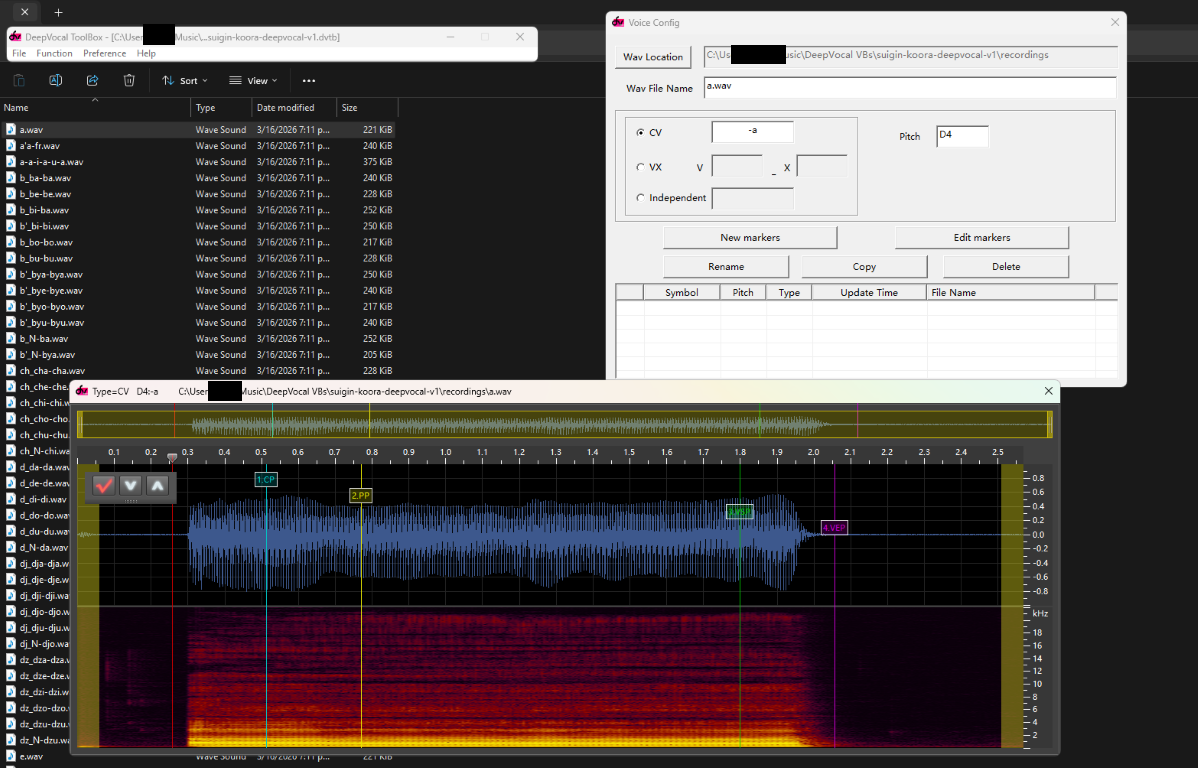
Markers!
Once you’ve selected the right file and entered the pitch correctly, it’s time to start making the markers! These are analogous to lines and parameters in an oto.ini file, but a bit different to interact with. The first thing you need to do is determine the type of marker that’s at the start of the audio file. Technically the order doesn’t matter, but doing it in order makes it a bit simpler in my opinion.
Below is a list of the types of phonemes in DeepVocal, as well as what they do and how to configure them.
-
CV - Same as UTAU, these are V and CV phonemes as well as -V and -CV (V/CV phonemes that start with silence) (ex.
-a,-se, etc.), which are automatically replaced (from the non-silence versions) by DeepVocal and technically optional. These are configured the same as in UTAU, with some slight differences. To configure them, make sure that the type is set to “CV” and the text in the box is the CV phoneme. Select “New markers” to start placing the markers! See below for configuration instructions and examples. -
VX - In CVVC UTAU, these are VC, VV, and V- phonemes. They are also the tail symbols we added to the dictionary earlier, which start with vowels. While they’re configured very similarly to UTAU ones, DeepVocal is actually made for this type of phoneme (whereas UTAU is technically just made for CV), so it won’t try to stretch them at all! To configure them, make sure that the type is set to “VX” and the text in the “V” box is the starting vowel and the text in the “X” box is whatever comes next. Select “New markers” to start placing the markers! See below for configuration instructions and examples.
-
Independent (sometimes shortened to “INDIE”) - This has the same interface as the VX phonemes, but aren’t connected to any other phonemes. To configure them, make sure that the type is set to “Independent” and the text in the box is the name of the independent phoneme as listed in the phonetic dictionary. Select “New markers” to start placing the markers! See below for configuration instructions and examples.
By default, the marker editor is very small. I recommend making it wider, but that’s up to you. To zoom in on a sample, you can use the yellow things on the sides of the top bar of the editor to change what section of the sample can be viewed.
To move markers, you can either drag them (which can only be done by the little labels) or click on where you want them to go (to place the playhead there) and then press the corresponding number on your keyboard (either 1-2 or 1-4). I prefer the second option because it’s faster. After you move the markers to the correct places (I have explanations below of how they’re supposed to be arranged, as well as examples), press the red checkmark button to save the sample. If there is an error (for example, the markers are in the wrong order), it will show you the error and you’ll have to correct it. Once you save a phoneme, don’t close the window; instead, scroll (by moving the upper yellow rectangle thing) to generally contain the place where the next phoneme will be, then enter the parameters for the next phoneme and make the markers. DVTB will keep the window in place and place the markers within it. Of course, the markers will still need to move, but it’s helpful to start with them in roughly the right place, especially for voicebanks with longer samples.
You’ll need to place each phoneme in the voicebank individually. Ideally, every voicebank provider will make some sort of description of which phonemes each recording contains, but that usually isn’t the case, especially if it’s an UTAU reclist. Later in the process (when building), DVTB will tell you if any are missing which is handy (though sometimes it’s a bit strange; I’ll get into that later as well)
As you can see, DVTB makes an astonishing amount of noises. When you drag the markers, it loops a very small section of the audio to show you what phoneme is playing, which is very handy in case you lose your place in a sample and need to know what vowel it is. You can also move the playhead and then press the space bar to play the audio file. Also, when making and saving markers it plays noises too. How fun!
Marker Types
There are 6 types of markers in DeepVocal: CP, PP, VSP, VEP, SP, and EP. CV phonemes have the first 4 and VX phonemes have the last 2.
For CV phonemes, the phonemes align to an OTO’s parameters like this (not quite the same, but very similar).
-
CP(Offset): This stands for “Consonant Point.” You place this at the very start of the consonant for stop consonants and in the middle (or start of the stable portion) of nasal/fricative consonants (these are sometimes called continuants). If it is a-CVphoneme, this goes right when the sound starts. -
PP(Preutterance): This stands for “Preutterance Point.” It goes right at the end of the consonant sound start of the vowel sound. For phonemes likekya, it goes before theysound. -
VSP(Fixed): This stands for “Vowel Start Point.” It goes at the point where the vowel is stable, marking the start of the part of the phoneme that is stretched. -
VEP(Cutoff): This stands for “Vowel End Point.” It goes a little bit before the vowel stops being stable. It’s the end of the part that’s stretched and the end of the sample.
For VX and Independent phonemes, there are only 2 types of marker, and in my opinion they’re so much simpler
-
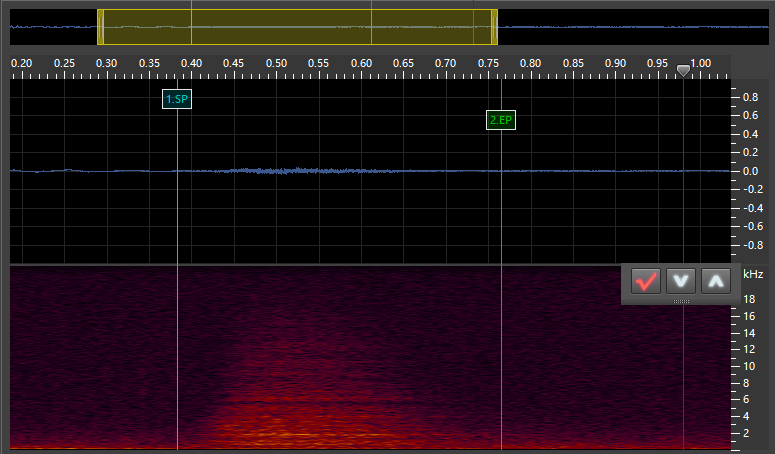
SP: This stands for “Start Point.” It marks the start of the VX/Independent phoneme. For VX and tail phonemes, this is placed at the point of the vowel where it is no longer stable. For independent phonemes, this is at the start of the sound. -
EP: This stands for “End Point.” It marks the end of the VX/Independent phoneme and goes at the very start of the next phoneme. For stop consonants such ask, this is as soon as the silence starts. For fricatives/voiced phonemes (continuants), this is immediately at the point where the consonant sound is stable (generally a very short time after the vowel ends). For VV phonemes, this is immediately when the sound becomes the next vowel, though I may be doing this wrong (the timing for my VV phonemes is always a bit messed up). I’ll have to do some experimentation with that. For independent and tail phonemes, this marker goes at the end of the sound.
Have fun configuring all of the samples! Here are some examples to how they’re supposed to be configured:
Configuration Examples
CV
-a:
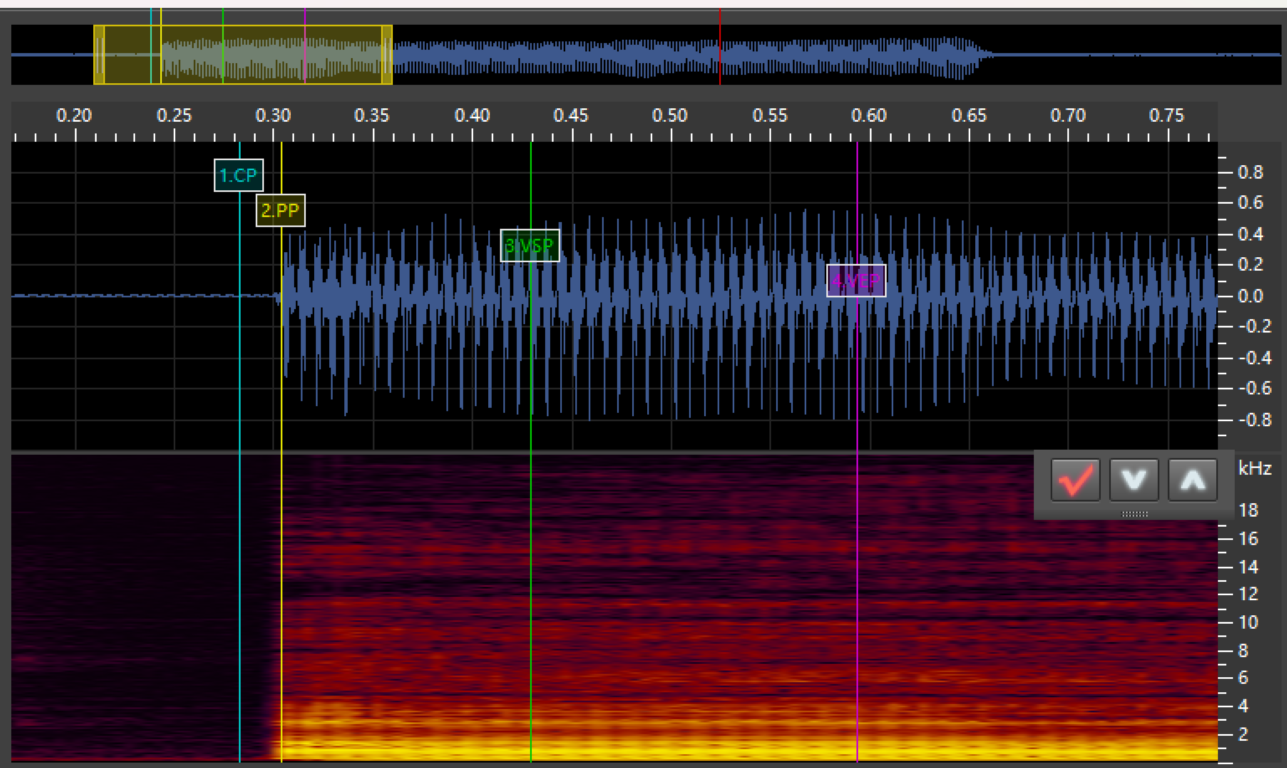
a (In this example VSP and VEP are backwards. they should be in the opposite order, sorry!):
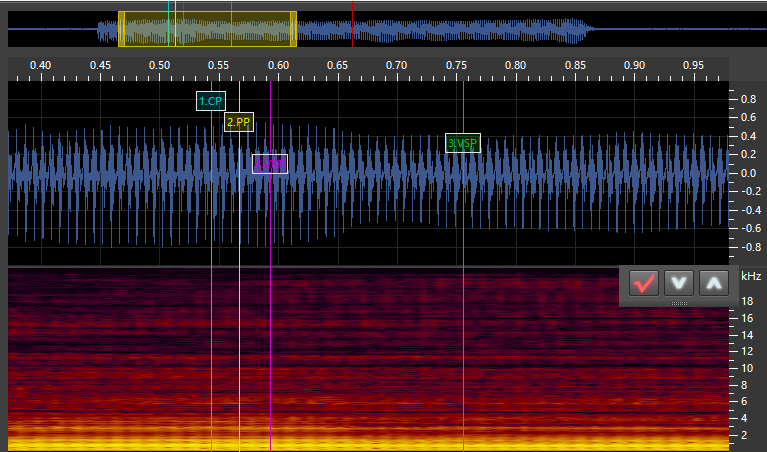
-se:
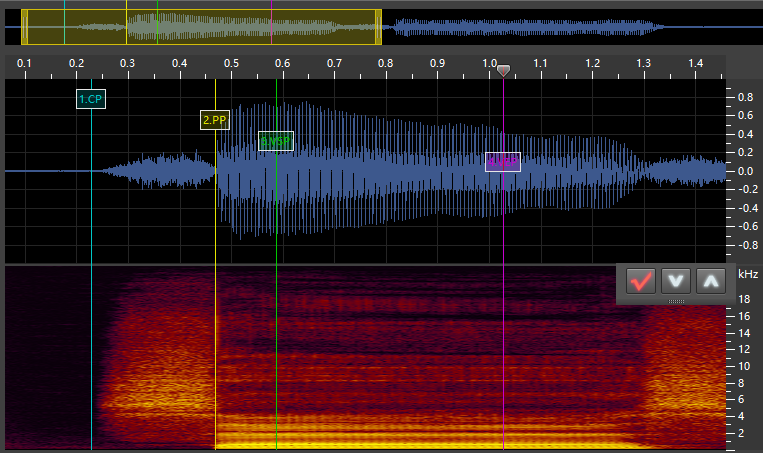
-pyu:
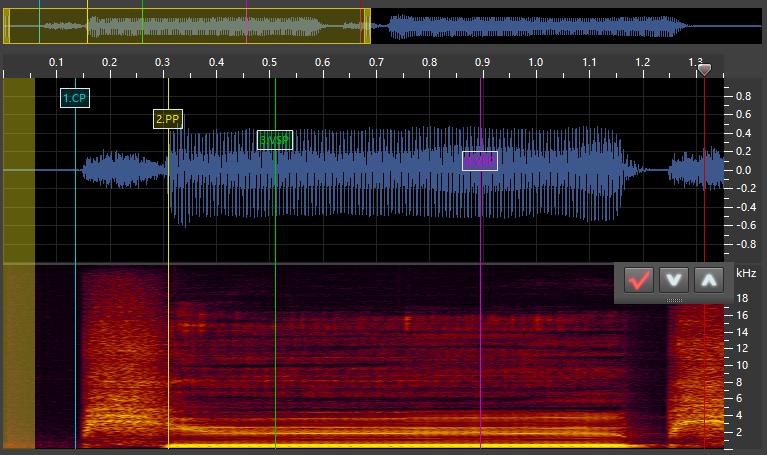
to:
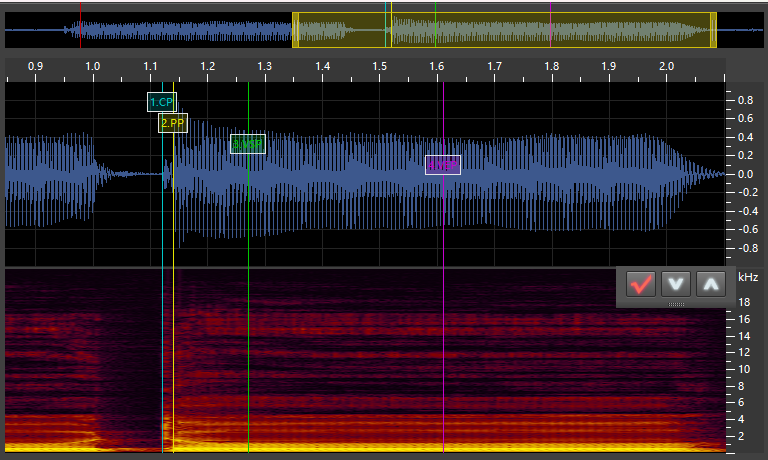
ka:
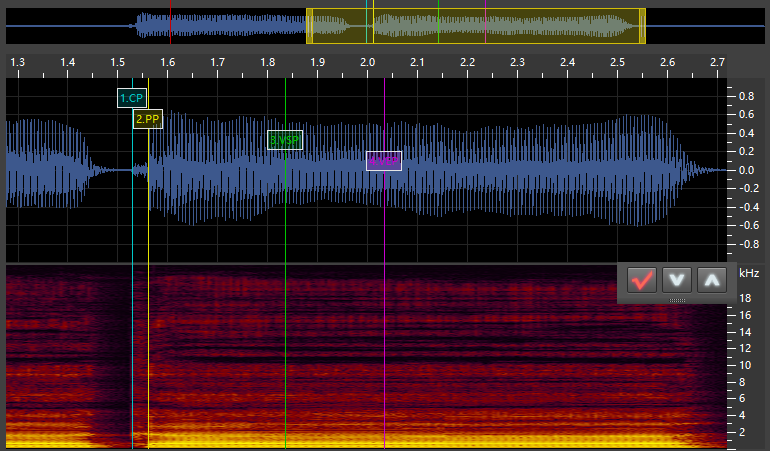
nu:
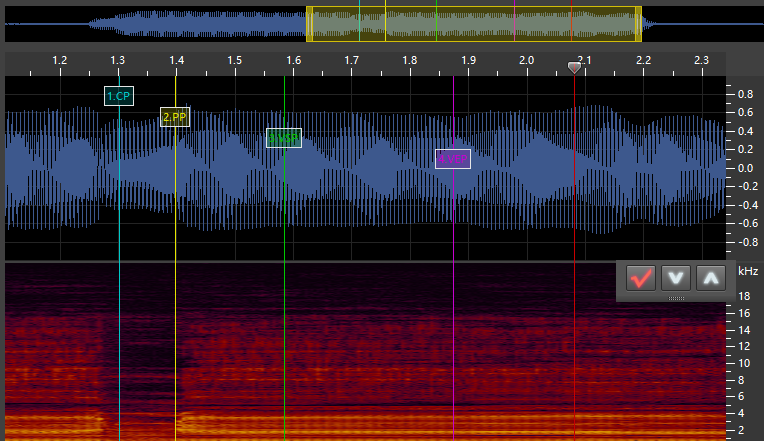
VX
a_i:
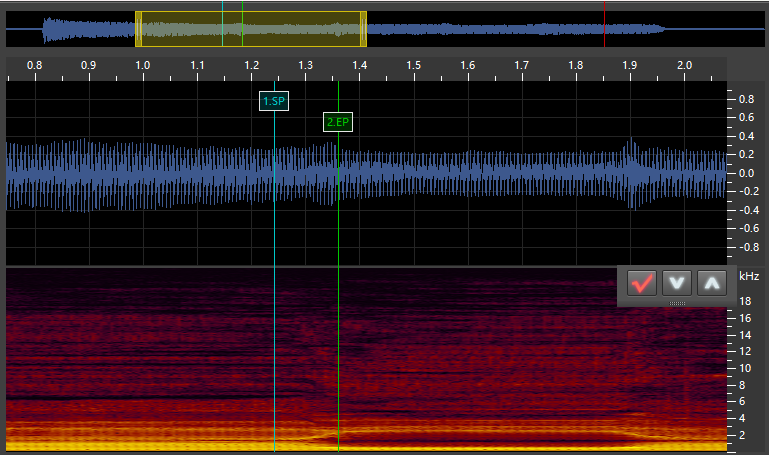
u_k:
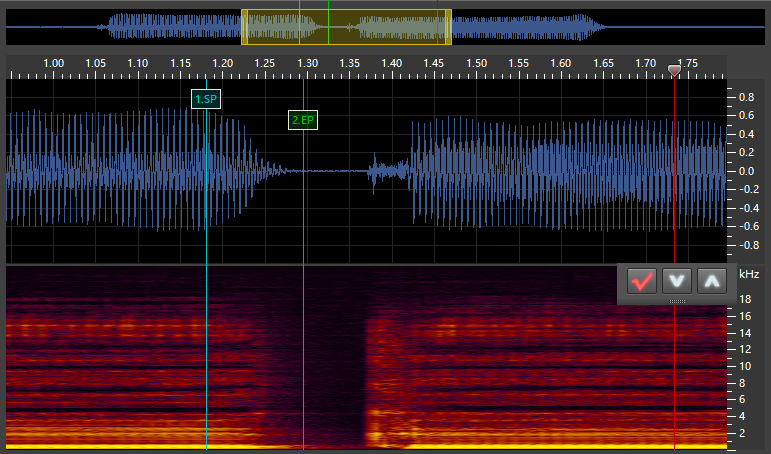
e_m:
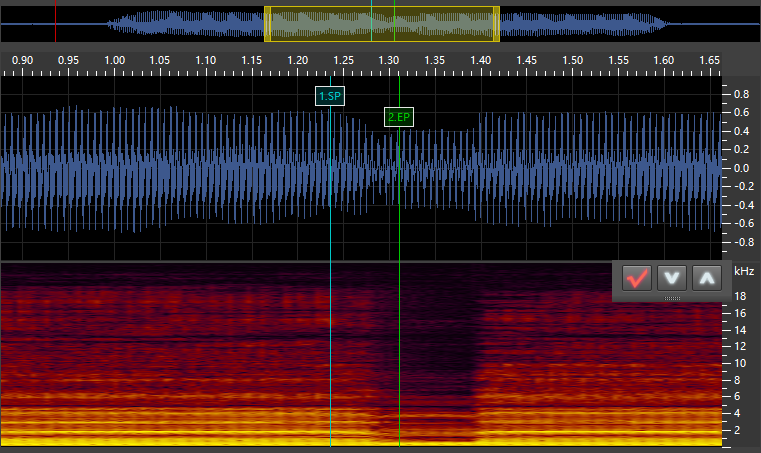
N_k:
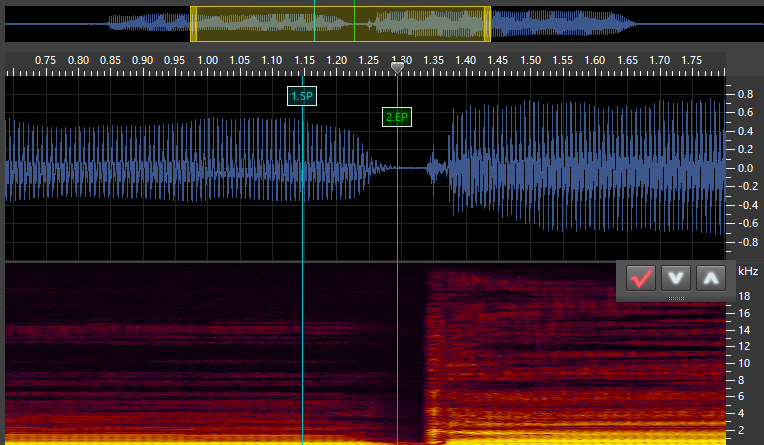
N_sh:
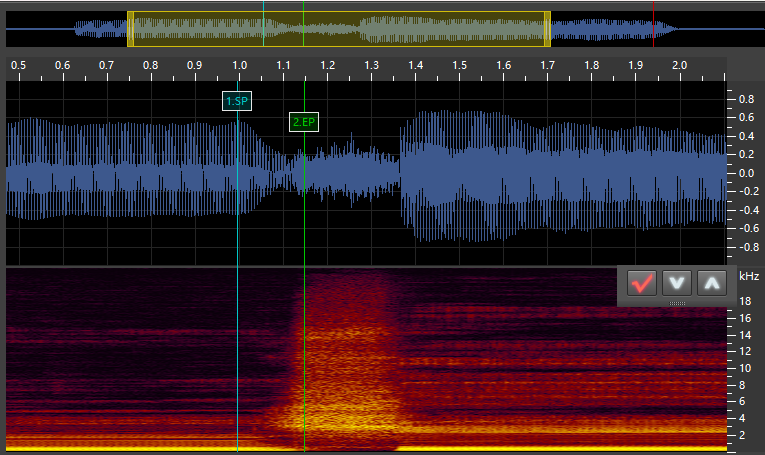
a_Fr (Tail):
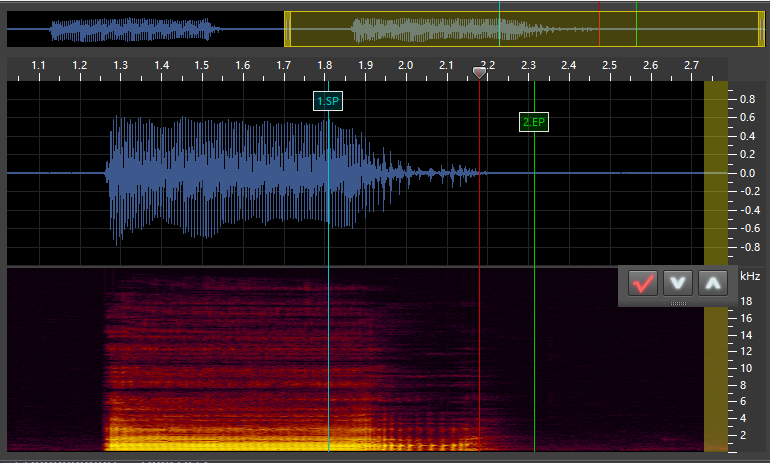
o_- (Tail):
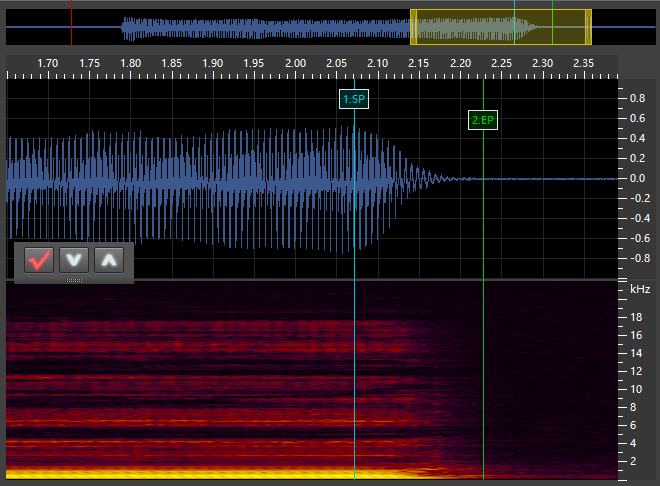
Independent
Note: Voicebanks made with DeepVocal ToolBox v2.1.0 will not support these phonemes, they will just play silence. I am working on finding a workaround, but it’s very unlikely that it’s possible to use anymore.
Ex (Exhale) (It’s very dim because breaths are quiet):
Building
Building is the process that DVTB does to assemble the voicebank configs and markers and stuff into the voicebank that the DV editor uses. It is composed of multiple steps. To open the window to start this process, go to “Function” > “Build Voice Bank”. The voicebank-building window has quite a lot of settings in it, so please follow all of these steps.
Wav Locations
This is where you select the folders of samples (which have the .dvcfg files). If you’ve been following the tutorial, this is the recordings folder. Click the + button to add a directory, then find your folder in the window that appears.
Model Symbols
Models are what DeepVocal uses to make its voicebanks sound more realistic. I don’t know much about how they work, but I plan to do research someday into how they’re formed and what they contain. In this section, select “All setted symbols in wav locations” if this is your first time doing this. This will make the models for all of the phonemes you’ve already configured. If you’re updating or editing a voicebank, you’d use the other option and enter the phonemes (separated by commas) into the box (VX phonemes are formatted as v_x).
Build the Models
Once you’ve configured the model symbols fully, select the model file location by pressing the button, then find your voicebank folder in the window that appears. Make a new folder within your voicebank folder titled “models” and select it. Check the “overwrite existing phonemes” box if you want to remove previously-built models. Now that you’ve set that, you can press the “Build Voice Model Files” button. Once you do this, select your logs folder that we made at the start and name the log file something like models_1.txt, since you should differentiate between model and voicebank logs, as well as allowing for multiple versions (trust me, you’ll need to fix things unless you were very lucky). Then save that and it’ll start! This process takes a long time (usually between 10 and 30 minutes if I had to estimate, but that depends on how many samples there are and how long they are). Once it says it is done, you can close the model-generation window (the one with the green text). Look through the log .txt file you made and find any errors. Here is the list of the possible errors listed in the official documentation along with what I think they mean and how to fix them.
Model Errors
- “File create failed”: DVTB was not able to create the file. Most likely, this is because your model file location is in a weird place that only administrators can access. Try moving the model file somewhere else.
- “Markers sequence error”: The markers for the listed phoneme are not in the right order. To fix this, go back to the marker editor and place that phoneme’s markers in the right order. Enter the wav location and name as well as the phoneme (and type), then press “edit markers” so that you don’t have to completely remake them.
- “Unvoiced part exists in voiced consonant”: This error says that one of the voiced consonants (which we set in the phoneme dictionary) is not voiced enough for the software to pitch-shift. The first thing to do (most often this is the case if only 1 or 2 phonemes have the error) is go to the marker editor and edit the markers (following the same process as for the error above) to make sure that the space between
CPandPPis the constant part of the consonant. If all of the phonemes with this consonant have this error (or if changing the markers is impossible), the consonant has been categorized incorrectly. Open the phonetic dictionary and delete the consonant from the voiced consonant list and add it to the voiceless consonant list. - “Unvoiced part exists in vowel”: Same as the “Unvoiced part exists in voiced consonant,” except with a vowel instead of a voiced consonant. This is fixed by adjusting the markers and rebuilding those phonemes.
- “Unvoiced part exists in the start of this continuant”: Continuant sounds are defined as consonants that can be stretched out, such as
z,m, andf. This error confuses me because these phonemes are not defined differently than the normal voiced/unvoiced consonants. This error is the same as the above ones, but I don’t know how to solve it, sorry. If I had to guess, this refers only to voiced continuants. Try messing with the markers to see if something is wrong. This consonant might also need to go into the unvoiced consonants section. - “Symbol error”: One of the symbols is wrong. Make sure to check all of the pages of the phonetic dictionary window to see if it’s missing or mistyped. Also, check the “Please input symbols […]” box to see if you mistyped a phoneme there.
- “Pitch symbol error”: The pitch value is set incorrectly. It should be formatted the same as in the editor (
C4,A2, etc). Either change this for the phonemes with the error (in the same way as editing the markers) or (if this is an issue with a lot of them), open the.dvcfgfile in a text editor (such as Notepad++) and doctrl+hto open the find-and-replace dialog. “Find what” should be set to the incorrectly-typed pitch between 2 quotation marks (ex."H3"). Replace with should be set to the correctly-typed pitch value, also between quotation marks (ex."G3"). Click “Replace all” to set all of them to be correct - “Unvoiced part exists in continuant to vowel”: I am unsure what this means exactly. Try messing with the messed-up markers to see if something is amiss.
- “Unvoiced part exists in continuant to voiced consonant”: Same as above, I don’t really know what would cause it. Check the markers to see if something looks wrong.
Once you’ve fixed all of the errors, make sure to save. Then rebuild the voicebank. To do this, go to the voicebank-building window and set the model symbols to “Please input symbols […]” and type the names of all of the phonemes that had errors into the box. Separate them with commas, and make sure that VX phonemes are formatted like v_x. Then make sure to check “Overwrite existing models” and then build the voicebank again. If there are still errors, try to fix them and redo this process.
Build the Voicebank
Finally! the part where you can build the voicebank! Congratulations on making it this far! Here is how to configure things in this section of the voicebank-building window.
“Pitch Symbols”: Enter the symbols (ex. D4) contained in your recordings folder. For this tutorial, there should only be one of them. If you’re doing a multi-pitch voicebank, separate them by commas (there are examples on the window).
“Singer Name”: Enter the name of the singer. I find it very handy to have a version number. The name can contain spaces, alphanumeric characters, kana, and kanji. I am unsure what special characters are and aren’t allowed, so I would recommend sticking to alphanumeric characters and spaces.
“Voicebank Location”: Select the button, then select the voicebank folder that has the recordings/models/logs folder. Make a new folder titled something like “[name]-v001” (for my example, suigin_koora_dv_v001), since (most likely) you’ll need to do this multiple times to fix errors and add things to the voicebank. This is the place where the actual voicebank files that are accessed by the engine (which are called SKC, SKI, and voice.sksd) will be saved.
Finally before building the voicebank, make sure that the “Model File Location” box in the previous section is still set correctly. The voicebank contains these files and will need to access them during this process.
Press the “Build Voice Bank” button, then select your logs folder again and title the log file something like vb-1.txt. Then click save and it’ll build! This doesn’t take very long, usually only a few seconds. Again, it will make a list of the errors in that log file. Below is a list of errors that can come up during this part of the process and how to fix them.
Voicebank Errors
- “Model file not exists”: The model file for this phoneme doesn’t exist. This is caused either because the phoneme had an error in the model-building process or because the model never got created. Sometimes this error can be ignored (for example
-kaandkaare very similar in Japanese so it isn’t really necessary to have-ka, and not having that phoneme will give this error), but sometimes this happens because the voicebank is missing important phonemes. This also happens because, when configuring phonemes, you can forget to actually save them with the checkmark. Check to see if they actually exist, and if they don’t, create them. Check through the model log to see if it had an error, fix it, then make sure to actually enter the phoneme into the box where you specify what phonemes are modeled, then try running that again, then build the voicebank again. - “File create failed”: This is caused because DVTB can’t make the file. Make sure that you have the voicebank folder in a place that can be accessed by a non-admin user.
To rebuild the voicebank, either make a new foder (ex. suigin_koora_dv_v002) and select that as the voicebank folder, or delete the SKC, SKI, and voice.sksd files in the v001 folder since there isn’t an option to overwrite them.
Yay, you did it!! Go to the next step which will explain how to install and use the voicebank.
Next Step: Installing & Testing your Voicebank
BETA Japanese Phonetic Dictionary for my DeepVocal JA CVVX reclist
(This is at the bottom of the page because it’s very long)
Since this is in beta, it may not function properly. Please reach out to me for help if needed.
(Last updated: 3-16-2026)
1: Symbol List
a,a,a
i,i,i
u,u,u
e,e,e
o,o,o
N,N,N
'a,',a
'i,',i
'u,',u
'e,',e
'o,',o
'N,',N
ka,k,a
ki,ky,i
ku,k,u
ke,k,e
ko,k,o
kya,ky,a
kyu,ky,u
kye,ky,e
kyo,ky,o
ga,g,a
gi,gy,i
gu,g,u
ge,g,e
go,g,o
gya,gy,a
gyu,gy,u
gye,gy,e
gyo,gy,o
sa,s,a
si,s,i
su,s,u
se,s,e
so,s,o
sha,sh,a
shi,sh,i
shu,sh,u
she,sh,e
sho,sh,o
za,z,a
zi,z,i
zu,z,u
ze,z,e
zo,z,o
ja,j,a
ji,j,i
ju,j,u
je,j,e
jo,j,o
ta,t,a
ti,t,i
tu,t,u
te,t,e
to,t,o
tsa,ts,a
tsi,ts,i
tsu,ts,u
tse,ts,e
tso,ts,o
cha,ch,a
chi,ch,i
chu,ch,u
che,ch,e
cho,ch,o
da,d,a
di,d,i
du,d,u
de,d,e
do,d,o
dza,dz,a
dzi,dz,i
dzu,dz,u
dze,dz,e
dzo,dz,o
dja,dj,a
dji,dj,i
dju,dj,u
dje,dj,e
djo,dj,o
na,n,a
ni,ny,i
nu,n,u
ne,n,e
no,n,o
nya,ny,a
nyu,ny,u
nye,ny,e
ha,h,a
hi,hy,i
hu,h,u
he,h,e
ho,h,o
hya,hy,a
hyu,hy,u
hye,hy,e
hyo,hy,o
ba,b,a
bi,by,i
bu,b,u
be,b,e
bo,b,o
bya,by,a
byu,by,u
bye,by,e
byo,by,o
pa,p,a
pi,py,i
pu,p,u
pe,p,e
po,p,o
pya,py,a
pyu,py,u
pye,py,e
pyo,py,o
fu,f,u
ma,m,a
mi,my,i
mu,m,u
me,m,e
mo,m,o
mya,my,a
myu,my,u
mye,my,e
myo,my,o
ya,y,a
yu,y,u
ye,y,e
yo,y,o
ra,r,a
ri,ry,i
ru,r,u
re,r,e
ro,r,o
rya,ry,a
ryu,ry,u
rye,ry,e
ryo,ry,o
wa,w,a
wi,w,i
we,w,e
wo,w,o
va,v,a
vi,v,i
vu,v,u
ve,v,e
vo,v,o
2: Vowel List
a,a
i,i
u,u
e,e
o,o
N,N
3: Voiced Consonant List
z
j
n
m
y
v
w
4: Unvoiced Consonant List
k
ky
g
gy
s
sh
t
ch
ts
h
hy
f
b
by
p
py
r
ry
5: Independent Symbol List
6: Tail Symbol List
Next Step: Installing and Testing